Please assign a menu to the primary menu location under MENU

  • Home
  • Linux
  • Mobile
  • Codes
  • Blog
  • Tools
    • No Copyright Images
    • Text to Audio Converter
    • Resume Generator
    • Image Converter
  • Games
  • Course
  • iPhone
Tuesday, April 14, 2026
  • Home
  • About
  • Contact
  • DMCA
  • Privacy Policy
TechsBucket
  • Home
  • Linux
  • Mobile
  • Codes
  • Blog
  • Tools
    • No Copyright Images
    • Text to Audio Converter
    • Resume Generator
    • Image Converter
  • Games
  • Course
  • iPhone
HomeBlogHow to Enable root user on MacOS
Blog

How to Enable root user on MacOS

TechsBucketJune 13, 2021March 14, 2022
248views

Mac administrators can use the root user account to make changes that require access to more areas of the system. The ”root” is a superuser which have read and write privileges in the system. This includes files in other macOS user accounts, by default user “root” is disable in MacOS.

If you can log in to your Mac with your admin account which created during Mac installation, then you will get option to enable the root user. Today in this post we are going to learn how to enable “root” login in your MacOS

Steps To Enable root Login

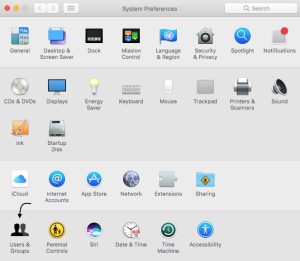
  • Choose Apple menu > System Preferences, then click Users & Groups
 

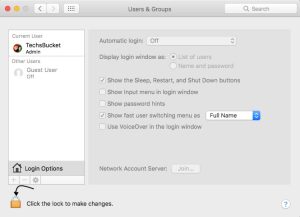
  • Click lock icon, then enter an administrator name and password
 

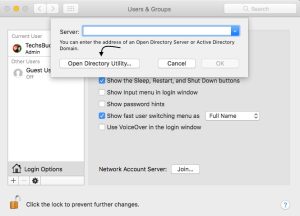
  • Now, Click Login Options then Click Join
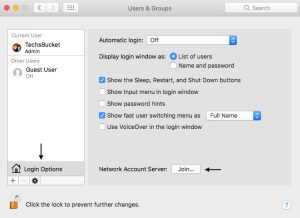
 

  • Click Open Directory Utility


  • Click lock icon in the Directory Utility window, then enter an administrator name and password
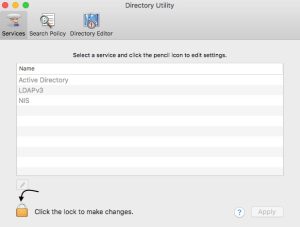
 

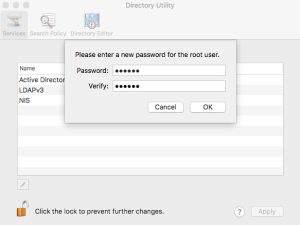
  • From the menu bar in Directory Utility Choose Edit > Enable Root User, then enter the password that you want to use for the root user
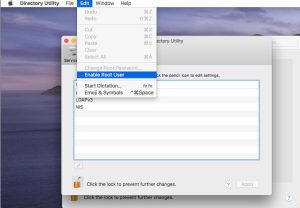
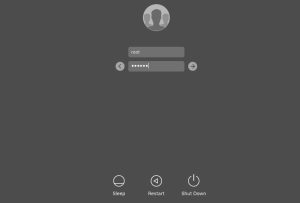
Log in as the root user

When the root user is enabled, you have the privileges of the root user only while logged in as the root user.

  • Choose Apple menu > Log Out to log out of your current user account
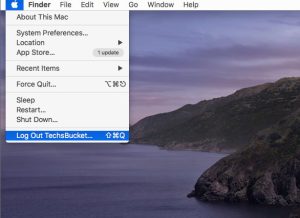
 

  • At the login window, log in with the user name ”root” and the password you created for the root user
Change the root password

  • Choose Apple menu > System Preferences, then click Users & Groups


  • Click lock icon, then enter an administrator name and password


  • Click Login Options then join


  • Click Open Directory Utility


  • Click the lock icon in the Directory Utility window, then enter an administrator name and password


  • From the menu bar in Directory Utility, choose Edit > Change Root Password
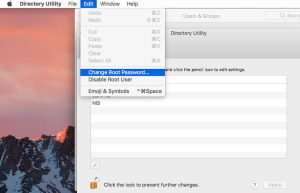
 

  • Enter a root password when prompted

Video Tutorial


In this post we have covered how to enable the root user on macOS. Comment below for your queries and suggestion or you can contact me any time via the contact page. I will be assisting you and try my best to clear your all doubts.

Tags :enableenable rootenable root accessenable root access macenable root on macenable root userenable root user for macoxenable root user macenable root user mac catalinaenable root user mac mojaveenable root user on machow to enable root access on macos mohavehow to enable root account on macoshow to enable root on machow to enable root userhow to enable root user on machow to enable root user on macosmacosmacos rootrootroot userroot user macroot user macos
add a comment

Leave a Response Cancel reply

TechsBucketMarch 14, 2022June 13, 2021
Linux Basic Commands for Beginners
How to Install Jenkins On CentOS 8

You Might Also Like

Perplexity AI
Blog

Perplexity AI: The Future of AI-Powered Search You Need to Try

TechsBucketNovember 27, 2025
Best Cloud Storage Price Comparison
Blog

Best Cloud Storage Price Comparison

TechsBucketNovember 23, 2025

Popular posts

How to install Telnet On Centos 7

May 26, 2020August 7, 2022

How to Install CentOS 7 (Easiest Guide With Screenshots)

May 26, 2020August 7, 2022

How to add Google Firebase to Android application

December 30, 2021March 14, 2022
Ubold Premium Bootstrap Admin Template

Ubold: Premium Bootstrap Admin Template (v6.0.0)

October 5, 2023November 5, 2023

Implement AdMob Banner Ad using Android Studio

March 13, 2022March 13, 2022

health

technology

fashion

Popular reviews

Popular

Fix Bluetooth Audio Devices and Wireless Displays

Fix Bluetooth Audio Devices and Wireless Displays in Windows 10

July 31, 2025August 2, 2025

Nokia 6600 Max 2025 Specs: 16GB RAM, 15900mAh Battery!

February 8, 2025February 9, 2025
HTML em tag

HTML em tag, HTML text styling, em tag usage

October 7, 2024

Pages

  • Home
  • About
  • Contact
  • DMCA
  • Privacy Policy

Contact Info

TechsBucket is a website that publishes articles on technical skills about Linux, Mobile, Windows, and other technical stuff.

Email:techsbucket@gmail.com
Website:TechsBucket
Optimized Telegram Widget

Join Our Telegram

Join Now

Copyright © TechsBucket All Rights Reserved.

We use cookies to ensure that we give you the best experience on our website. If you continue to use this site we will assume that you are happy with it.